Once you convert a calculator or form to Android format, you can make a real app of it that you can distribute and perhaps even sell. Here are the steps required to create calculating Android apps with Excel and AppsGeyser.
SpreadsheetConverter iPhone/Android generates HTML5 web apps that work in the browser of any smartphone. With AppsGeyser, you can convert such a web app into a real, self-contained Android app. Your app can use tabs for navigation, be location-aware and use pop-up notifications. After testing, you can distribute your app on the AppsGeyser app network. Users of your app can share their experiences via social networks. AppsGeyser is financed via advertising, and the advertising space is shared 50/50 with you.
Note that you only specifically need an Android smartphone if you want to download and install the final app. Any other smartphone will do fine during most of this tutorial.
In this tutorial, we will
The app that will make us millionaires has one simple but important function: it can double almost any number by multiplying it by two.
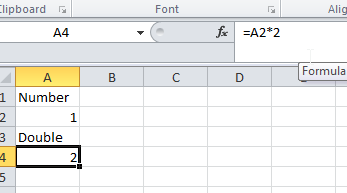
Create the spreadsheet yourself or download the doubling calculator here.
Select the iPhone/Android format and convert the doubling calculator for the web with SpreadsheetConverter. If you haven’t used SpreadsheetConverter before, you may want to consult the basic tutorials for assistance.

After conversion, click Publish to Cloud in the SpreadsheetConverter ribbon to upload the calculator.
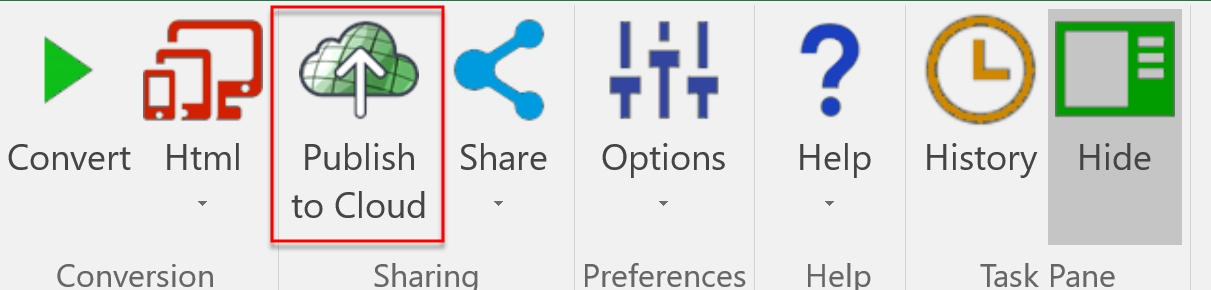
Publish to Cloud offers a seven-day Test upload and a permanent Production upload. You need a paid license for SpreadsheetConverter to use Production links. For this tutorial, you can use either upload location.

After the upload is complete, click on Copy full link and paste the permanent link to the uploaded web page into a note.
Finally, click on the QR code icon and paste the QR code for the web app into a note.

For step-by-step instructions, consult the help page for Publish to Cloud.
Don’t test the calculator or form in the desktop environment, e.g. from your laptop. The size and positioning of the different screen objects will become incorrect.
Instead, scan the QR code for the upload location with your phone. You can test the web app also with an iPhone. For your convenience, we provided a QR code for the web app below.
If this had been a real calculator, you would now verify that it works as you want and the colors and layout match how you want the app to appear.

For this tutorial, we will use AppsGeyser to create the Android app. Point your web browser (still on your laptop) to www.appsgeyser.com/create/start/.
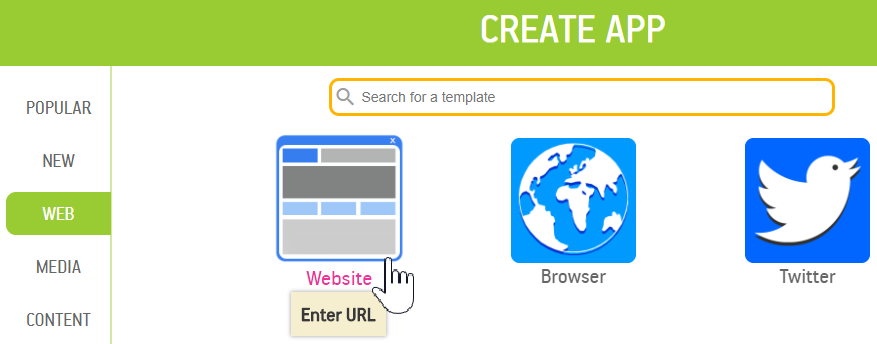
Select the Web category and click on the Website button.
The Preview window will probably not display your app properly, but your app will work correctly when you run it on an Android phone.
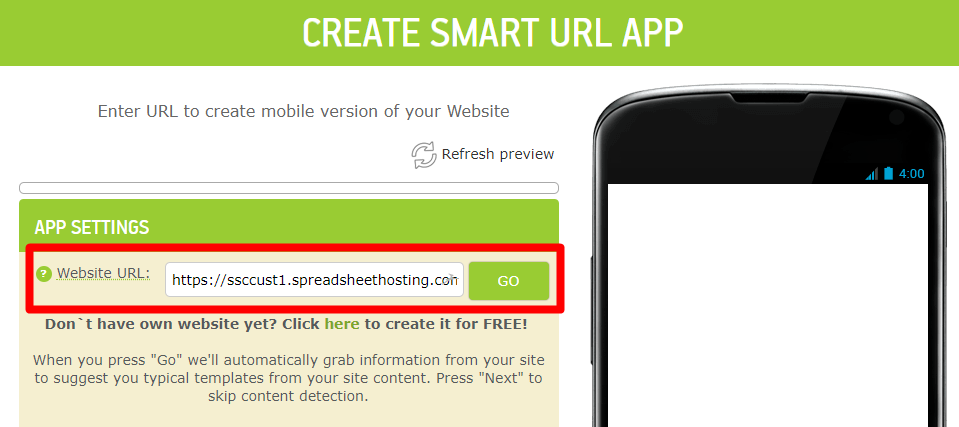
Paste the link to spreadsheethosting.com that you saved when you uploaded the calculator.
Click Next.
Provide any remaining information you are asked for.
Press Create to create the app.
Up until now, everything has been preparation. Now it’s time to install the app on an Android phone. This is the only step a user of your app will have to perform in order to use your calculator.
The app can only be installed on an Android device, not on any other kind of devices such as iPhones, iMacs or Windows laptops.
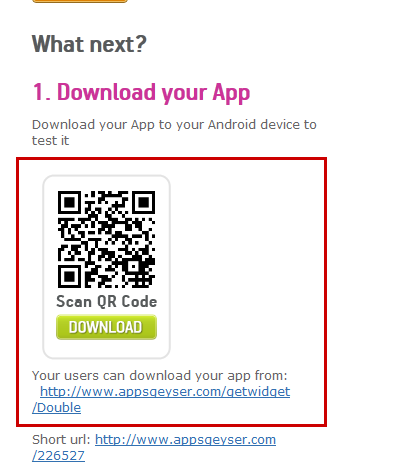
AppsGeyser will provide you with links to the newly created app in various formats. The easiest is to scan the QR code with your phone.
Start the app on the Android phone. It should look like this:
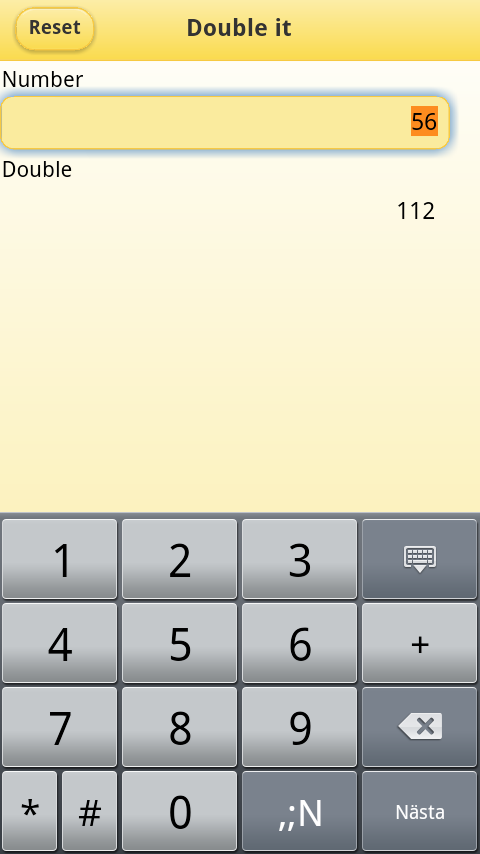
SpreadsheetConverter allows you to convert Excel spreadsheets to web apps. Using services such as AppsGeyser, you can convert the web app into a standalone Android app. The app works exactly as the spreadsheet did in Excel. To change the calculator’s layout or functionality, simply return to Excel, change the spreadsheet and convert it to an app again.



Click on Download to install and test this Excel add-in for Windows.
Click on Upload to let us convert a spreadsheet for you for free.
